Can You Monitor a Photo Booth Remotely in 2026?
Quick Summary
Yes, in part. Remote monitoring software lets you see booth status, capture counts and print queues from another device, but it does not replace a person standing next to the booth. Physical faults like paper jams or loose cables still need someone on site.
- Remote monitoring shows whether the booth is online, how many sessions were captured, and whether prints are waiting.
- Confirm the software supports your exact camera and printer models before the event, not on the night.
- Assign one person to receive alerts and one backup contact, and agree on what each alert triggers.
- Test connectivity at the actual venue during load-in, since back rooms and basements can have weak signal.
- Lock down remote access with unique passwords, two-factor authentication, and removal of former staff after each event.
Table of Contents
- What Photo Booth Remote Monitoring Software Does
- Photo Booth Software Options and How They Compare
- Connectivity Requirements and Offline Contingencies
- Setting Up Remote Control and Admin Access
- Configuring Alerts for Printer Jams, Camera Faults and Crashes
- Troubleshooting a Booth Remotely During an Event
- Managing Multiple Booths and Reporting Event Metrics
- Why an Attended Booth Still Matters on Event Night
- Frequently Asked Questions
What Photo Booth Remote Monitoring Software Does
If you're planning an event in NYC or on Long Island, you can ask whether a photo booth can be watched from a phone during the night. The honest answer is yes, in part. Remote monitoring software lets someone see booth status, capture counts and print queues from another device. It does not replace a person standing next to the booth, and that distinction matters for how you plan.
Booth status, capture counts and print queues
Remote monitoring software can report whether the booth is online, how many photos or sessions have been captured, and whether prints are waiting in the queue. For a busy wedding or corporate gala, those three signals tell you whether guests are flowing through or whether something has stopped. Monitoring shows you that a problem exists. It does not walk over and clear a paper jam or reboot a camera.
Photo Booth Software Options and How They Compare
Photo booth software varies widely. Photo booth software varies widely, and the more useful exercise is to compare the categories against the job you actually need done on event night.
Pros and cons by software type
- Consumer-grade booth apps: Easy to set up on a single Windows PC or tablet. They often lack alerting, so you may not know a fault has occurred until a guest reports it. Remote control, when it exists, is usually limited to starting or stopping a session.
- Operator-focused platforms: Offer administration tools, session logs and remote control. Setup takes more planning, and they usually require a stable network connection. These are built for someone watching several units, not one.
- Hardware-tied systems: Pair the software with a specific camera or printer. Compatibility is tighter, but troubleshooting can be more predictable because the vendor controls the whole chain.
Whichever type you consider, ask the vendor which camera and printer models the software supports. Confirm that before the event, not on the night.
A feature checklist for evaluating remote monitoring
Rather than ranking products, score each candidate against what you need to see and change from a second device. A practical checklist:
- Status at a glance: online/offline state, current session, capture count and print queue visible without drilling into menus.
- Camera and device compatibility: confirmed support for the camera body and printer you own, plus the Windows version on the booth PC.
- Remote actions: can you start, stop, pause and re-queue a session, or only watch?
- Alerting: push or email notifications for printer errors, camera disconnects and app crashes, with a named recipient.
- Offline behavior: whether sessions queue locally and sync when the connection returns.
- Access control: unique user accounts, two-factor authentication and per-user permissions.
- User and device limits: how many operator seats and booths the plan includes.
- Support terms: what response the vendor commits to during an event window, and whether that support is included.
- Cost structure: whether pricing is a flat subscription, per-booth, or tied to a feature tier, and what happens to your data if you cancel.
Watch out: a long feature list can hide the one thing you need most. If remote start and stop is the reason you are buying, confirm it works on your exact camera and printer combination before you commit, not after.
For a rental company, the software is only one layer. The booth still needs a trained attendant on site all night to handle the physical failures software cannot fix, and the output still needs custom-branded templates and instant delivery to guests' phones plus prints to feel like a finished product rather than a kiosk. If you would rather have that handled for you, our Standard Photo Booth Package and Signature Photo Booth Package cover attended setups with prints and digital delivery.
Connectivity Requirements and Offline Contingencies
Remote monitoring depends on a network connection, usually Wi-Fi or a cellular hotspot. Event venues can have dense, congested networks, and some spaces have weak signal in back rooms or basements. Test connectivity at the actual venue during load-in, not only from an office.
Plan for the booth to keep running without a connection. Most capture and print functions should continue locally, with data syncing later. Ask whether the software queues sessions offline and how it recovers when the connection returns. If a feature needs constant internet access to work at all, treat that as a risk to plan around.
The table below summarises the connectivity and offline points covered above, so you can check them quickly during planning.
| Item | Value | Note |
|---|---|---|
| Connection types | Wi-Fi or cellular hotspot | Remote monitoring depends on a network |
| Weak signal areas | Back rooms, basements | Test connectivity during load-in |
| Testing location | At the actual venue | Not only from an office |
| Offline capture and print | Should keep running locally | Data syncs once the connection returns |
| Connection-dependent features | Treat as a risk | Plan around them if constant internet is needed |
Setting Up Remote Control and Admin Access
Remote administration generally means installing a companion app or remote desktop tool on the booth computer and signing into it from a second device. Setup should happen before the event, with a written checklist covering the booth PC, the camera connection, the printer driver and the network. Keep the configuration simple so the attendant on site can take over if remote access fails.
Securing remote access
Remote access is a potential entry point, so lock it down. Use unique passwords, turn on two-factor authentication where the software offers it, and limit who holds admin rights. Remove access for former staff or vendors after each event. Guest-facing data such as photos and email addresses deserves the same care as any other client information.
Configuring Alerts for Printer Jams, Camera Faults and Crashes
Alerts are where remote monitoring earns its keep. Set notifications for the faults most likely to disrupt a night: printer errors, camera disconnects and application crashes. A common mistake is enabling alerts without deciding who responds to them. Assign one person to receive notifications and one backup contact, and agree on what each alert should trigger.
Test alerts before the event by triggering a controlled fault if the software allows it. Confirm the notification arrives on the phone you will actually carry, and that it arrives quickly enough to matter.
Troubleshooting a Booth Remotely During an Event
When an alert arrives, work through a short sequence: check whether guests can still take photos, confirm the printer status, then restart the affected component only if needed. Restarting the whole booth in the middle of a session can lose data, so avoid it unless the booth is frozen.
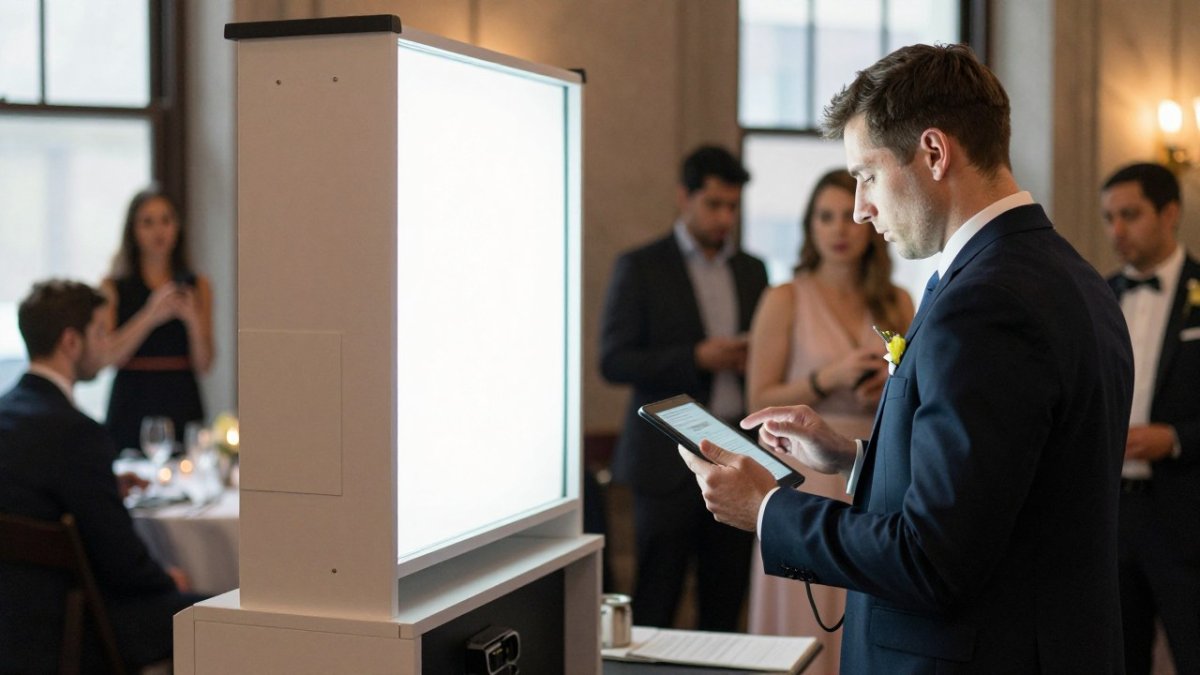
Some problems cannot be solved from a distance. A jammed printer, a loose cable or a camera that has lost power needs someone physically present. This is the main limit of remote monitoring, and it is why an attended booth remains the more reliable choice for a large event. For more on prevention, see our guide on How to Avoid Photo Booth Printer Jams.
Managing Multiple Booths and Reporting Event Metrics
Operators running several booths, or a permanent installation, need a way to see all units in one place. Learn how to manage a permanent photo booth day to day. Most ranking pages stop at "look for a dashboard." The operational reality is a workflow: how you identify which unit needs attention, how you standardize settings across units, and how you turn the night's data into a decision.
A fleet-monitoring workflow
- Name every unit clearly. Give each booth a location-based label (venue, room, floor) rather than a serial number, so an alert tells you where to send someone.
- Watch a single status board. A useful dashboard shows each booth's online state, current session, capture count and print queue side by side, so an outlier stands out without opening each unit.
- Triage by symptom. A booth that is online but not capturing is a different problem from one that is offline entirely. Sort alerts by what guests are experiencing, not by which alert fired first.
- Standardize settings and updates. Push the same layout, overlay template and software version to every unit so a guest experience at one venue matches another. Roll updates to one booth first, confirm it behaves, then apply to the rest.
- Close the loop after the event. Export capture counts and print volume per booth and compare them against staffing and layout choices.
Reporting that actually informs decisions
Capture counts and print volume are the baseline. The more useful comparisons are per-hour capture rate (does the booth slow down after the first hour?), sessions per guest for a known headcount, and the split between prints and digital sends. Those numbers help you judge whether a booth was understaffed, whether the layout invited guests in, and how to plan the next event of similar size.
Watch out: a dashboard that only refreshes on demand can show a stale status. Confirm how often the view updates before you rely on it to catch a fault in progress.
For ongoing installations, guidance on day-to-day administration is covered in How Do You Manage a Permanent Photo Booth?. Metrics also help you show clients what the booth delivered, and 8 Best Branded Booth Features That Earn Attention explains how branded output can extend that value after the event.
Why an Attended Booth Still Matters on Event Night
Remote monitoring gives you visibility, but it does not put a trained person beside the booth. At a wedding or corporate event, a guest-facing attendant handles guided starts, fixes problems in seconds, and keeps the line moving. Our booths are run by a professional attendant on site all night, with custom-branded overlays and templates and instant digital delivery to guests' phones plus prints. See branded booth features that earn attention for how that output extends your event's reach. For events that need branded activation or a Corporate Event Photo Booth Rental, that on-site staffing is the part software cannot replace.
If you are weighing an unattended setup against a staffed one, compare the total cost and guest experience. How Much Is a 360 Photo Booth Rental? walks through how different booth types compare, and How to Choose a Wedding Photo Booth: 2026 Guide can help you decide whether an attended booth fits your event.
Ready to plan your event? Check availability for your date at https://photoboothnyc.co/check-availability and we will confirm your options.
Frequently Asked Questions
What software do photo booths use?
Most photo booths run a dedicated capture application on a Windows PC or tablet, connected to a camera and printer. That software handles photo, GIF and video capture, overlays, print layouts and sharing by email, text or social platforms. Remote monitoring is usually an added layer that reports booth status to a dashboard you can check from your phone. When comparing vendors, ask which software they run, whether it supports remote control, and what happens to capture and delivery if the internet connection drops during your event.
Can you monitor a photo booth remotely during an event?
Yes, when the booth software supports remote administration. A remote dashboard can show whether the booth is online, how many photos have been taken, and whether the printer or camera is reporting a fault. Some setups also send alerts when something stops responding. Remote monitoring does not replace an attendant on site, because a jammed printer or a loose cable still needs a person to physically fix it.
Can photo booth software send alerts when a booth stops working?
Some photo booth software can send alerts when a booth goes offline, a capture fails or a printer reports an error. Alert features vary by platform, so confirm exactly which events trigger a notification and who receives it before your event. Ask whether alerts are delivered by email, text or app notification, and whether someone is assigned to respond while the event is running.
Does photo booth software work without an internet connection?
Many capture applications can take photos and print without an internet connection, but online features such as cloud gallery uploads, remote monitoring and some sharing options need connectivity. Ask your vendor how the booth behaves if the venue network drops. Plan for offline capture and local printing, and confirm that guests can still receive their photos once the connection returns.

