How to Avoid Photo Booth Printer Jams
Table of Contents
- Why Photo Booth Printers Jam and How to Prevent It
- Proper Paper Loading Techniques to Avoid Jams
- Selecting the Correct Paper Type and Weight
- Photo Booth Printer Maintenance Tips That Work
- How to Clear a Paper Jam in a Dye-Sub Printer
- Troubleshooting Photo Booth Printing Errors
- Environmental Factors: Humidity, Temperature, and Static Electricity
- Building an Emergency Field Repair Kit
- Frequently Asked Questions
Last Updated: October 4, 2026
Why Photo Booth Printers Jam and How to Prevent It
Photo booth printer jams stop your event cold: guests wait, staff scrambles, the moment is lost. Learning how to avoid photo booth printer jams keeps your event running smoothly.
Most jams are preventable once you understand their causes.
Jams stem from five causes: wrong paper type, improper loading, dirty rollers, incorrect tray settings, or humidity. Fix these, and jam rates drop dramatically.
Here's what causes the problem and how to keep it from ruining your event.
Proper Paper Loading Techniques to Avoid Jams
The most common jam is caused by improper paper loading.
Load paper straight into the tray without fanning or bending. Align the stack perfectly with tray edges, misaligned paper catches on the feed mechanism.
Before loading, run your hand along the entire paper path from tray to print head. Feel for debris, wrinkles, or blockages, even dust can trigger a jam.
Adjusting Paper Tray Guides for Your Media Type
Adjust tray guides to match your paper width exactly. Loose guides cause shifting; tight guides prevent movement.
Adjust guides snug against the paper stack (4x6 or 2x6 inches typical). Feel slight resistance, not pressure.
Test by sliding a single sheet manually, it should move smoothly with no resistance or wobbling.
Selecting the Correct Paper Type and Weight
Dye-sublimation is a thermal transfer process: heat vaporizes dyes that bond to specially coated paper. Wrong paper causes poor dye transfer and jamming.
Why Dye-Sublimation Paper Is Different
Dye-sub printers require polyester or resin-coated paper. Standard photo paper causes uneven dye transfer, blistering, warping, and jamming. Incompatible paper is a top cause of mid-event failures.
Approved Media Types for Photo Booth Dye-Sub Printers
Use approved media: premium glossy, semi-gloss, matte, or lustre photo paper (240 gsm minimum, polyester or resin-coated). Avoid inkjet paper, copy paper, thin stock under 200 gsm, and uncoated art paper.
Always buy paper explicitly labeled for dye-sublimation use or order from your printer manufacturer.
Paper Weight and Thickness: The Feed Mechanism Connection
Use paper at least 240 gsm. Under 200 gsm flexes and jams; 200-240 gsm is unreliable; 240-280 gsm is ideal; over 280 gsm may not feed.
Paper thicker than 10 mils may not fit through the ribbon cassette, causing jams before reaching feed rollers.
Storage and Humidity: The Hidden Jam Cause
Store paper in sealed bags with silica gel. Before events, acclimate paper to venue conditions for 30 minutes to prevent condensation and swelling.
If you're running events in high-humidity venues (outdoor summer events, beachside locations, venues with poor climate control), keep your paper supply in a sealed cooler with silica gel packets. Swap out paper every 2-3 hours during the event to prevent moisture absorption.
Check the expiration date on your paper stock. Photo paper coatings degrade over time, especially if stored in warm or humid conditions. Paper older than 2 years may have coating breakdown that causes poor dye transfer and jamming. Rotate your inventory and use older stock first.
Photo Booth Printer Maintenance Tips That Work
Understanding how to avoid photo booth printer jams through regular maintenance prevents 80% of jams before they happen. Most operators skip maintenance until something breaks. By then, you've already had jams at events.
Set a maintenance schedule and stick to it. Clean your printer weekly if you run events frequently. Clean it before every event if you only run occasional bookings. Preventative maintenance takes 15 minutes. Fixing a jam during an event takes 30 minutes and ruins the guest experience.
Cleaning Printer Rollers and the Paper Path
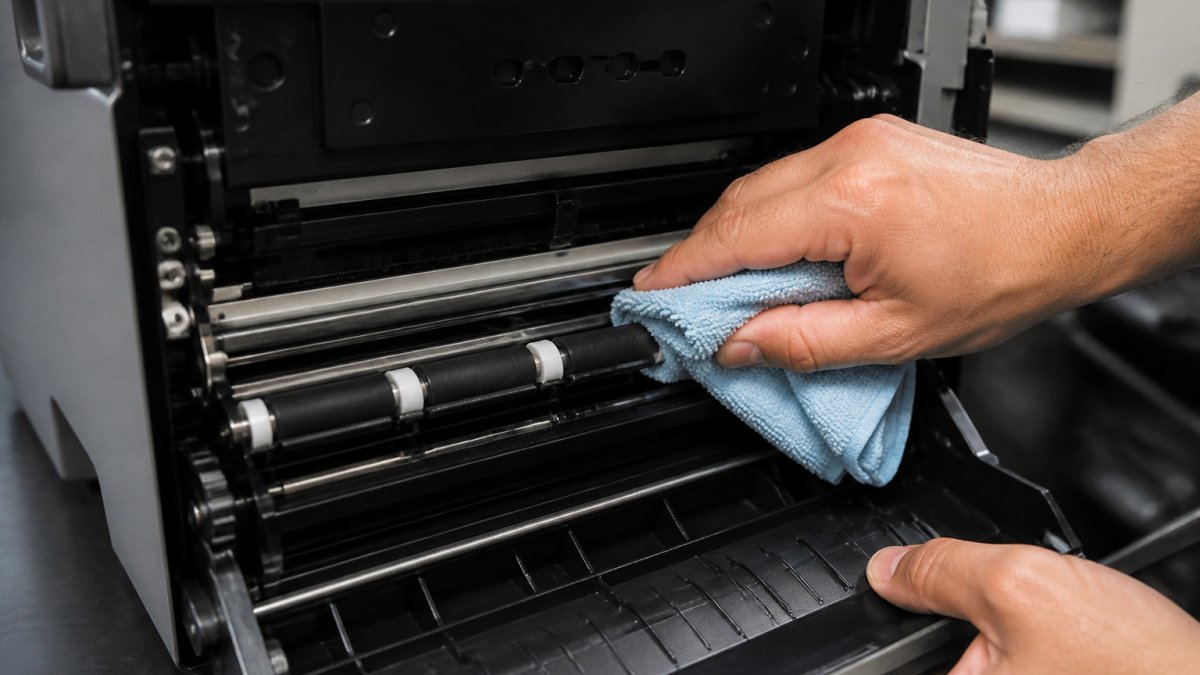
Printer rollers collect paper dust over time. This dust builds up and causes the paper to slip. Slipping paper jams.
Clean the rollers every week. Power off the printer first. Use a soft, lint-free cloth slightly dampened with distilled water. Gently wipe each roller, rotating it by hand as you go. Don't use rubbing alcohol or harsh solvents. They can damage the roller coating.
Clean the entire paper path while you're at it. Use a compressed air can to blow out dust from tight spaces. Hold the can upright and use short bursts. Long bursts can damage delicate components.
Check for debris stuck in the feed mechanism. Use a flashlight to see inside the paper path. If you spot a piece of torn paper or dust, remove it with tweezers. Never force anything. If it won't come out easily, stop and call your printer manufacturer.
Preventative Maintenance Schedules for Dye-Sublimation Printers
Create a maintenance calendar. Write down what you do and when you do it. This log helps you spot patterns and catch problems early.
Weekly maintenance (if running events frequently):
- Clean all rollers
- Inspect the paper path for debris
- Test a sample print to check for quality issues
- Check paper supply and expiration dates
Monthly maintenance:
- Deep clean the print head area
- Inspect the ribbon cassette for wear
- Check all cable connections
- Run the printer's built-in cleaning cycle if available
Quarterly maintenance:
- Professional calibration check
- Firmware update check
- Full system inspection
- Replace wear parts if needed (feed rollers, separation pads)
Keep spare parts on hand. Stock extra feed rollers, separation pads, and cleaning supplies. When a part wears out during an event, you can swap it quickly instead of canceling.
How to Clear a Paper Jam in a Dye-Sub Printer
Sometimes a jam happens despite your best efforts. You need to know how to fix it fast.
Stay calm. Most jams take less than five minutes to clear if you know what you're doing. Panic leads to mistakes that damage the printer.
Removing Jammed Paper Safely Without Damage
Turn off the printer immediately. Never try to force paper out of a running printer. The feed mechanism can tear the paper and scatter pieces deeper inside.
Open all access panels. Most dye-sublimation photo booth printers have a top cover, front panel, and rear access door. Open them all so you can see the entire paper path.
Look for the jammed paper. Trace it from the tray through the feed mechanism. It might be stuck halfway through, crumpled inside the print head area, or caught on a sensor.
Gently pull the paper out in the direction it was trying to travel. Pull slowly and steadily. Don't yank or twist. If the paper tears, stop and remove the pieces separately.
After removing the paper, inspect the paper path for torn pieces. Use a flashlight and look carefully. Even a small scrap can cause the next jam.
Run a cleaning cycle before you resume printing. This clears any dust or debris the jam created. Most printers have a cleaning function in the menu. Use it.
Test with a single sheet of paper before you load a full stack. Make sure the printer feeds normally.
Troubleshooting Photo Booth Printing Errors
Not every printing problem is a physical jam. Sometimes the error is software-side, or the printer detects a problem that mimics a jam but has a different root cause. Learning to read error codes and distinguish between hardware failures and software glitches saves you 20 minutes of troubleshooting during an event.
Sensor Errors and What They Actually Mean
Dye-sublimation photo booth printers have multiple sensors: paper position sensors in the tray, a ribbon advance sensor, a print head temperature sensor, and a media-out sensor. When a sensor fails, gets dirty, or misaligns, you get an error code.
Common error codes and their real causes:
-
Paper jam error (or "media jam" error): The sensor detected paper in an unexpected position. This could mean:
- Actual paper jam: debris or torn paper in the feed path
- Sensor misalignment: the paper is fine, but the sensor is out of position
- Sensor dirt: dust on the sensor lens blocks the beam
- Paper tray not fully seated: the tray isn't clicked into place, triggering a false jam
Fix: Clear the paper path, clean the sensor lens with a soft cloth, reseat the paper tray, and run a test print.
-
Tray empty error (or "media low" warning): The sensor thinks the tray is empty when it's full. This happens when:
- The sensor lens is dirty (most common)
- Paper is loaded but not pushed all the way to the back of the tray
- The sensor is misaligned after a jam
Fix: Clean the sensor lens, push the paper stack to the back of the tray, and check that the tray is fully seated.
-
Print head error (or "head temperature" error): The print head is too hot, too cold, or not responding. Causes include:
- Printer overheating: the venue is too warm, or the printer has been running continuously
- Print head not fully seated: the head may have shifted after a jam
- Thermal sensor failure: the sensor that monitors head temperature is broken
Fix: Power off the printer and let it cool for 15 minutes. Check that the print head is fully seated (consult your manual for the correct position). If the error persists after cooling, the thermal sensor may be failing.
-
Ribbon error (or "cartridge error"): The dye ribbon isn't advancing, or the printer can't detect the ribbon. This is dye-sublimation-specific and critical:
- Ribbon cassette not fully seated: the cartridge is loose
- Ribbon advance motor failure: the motor that pulls the ribbon forward is broken
- Ribbon at end of life: the ribbon has printed its maximum number of images
- Ribbon tangled: the ribbon is twisted inside the cassette
Fix: Power off the printer. Open the ribbon cassette and reseat it firmly until you hear a click. Check that the ribbon is not twisted or bunched. If the error persists, the ribbon may be at the end of its life and needs replacement. If the ribbon is new and the error continues, the advance motor may be failing.
-
Temperature error (or "environmental error"): The printer is too hot or too cold. Dye-sublimation printers are sensitive to temperature:
- Venue too warm (above 75°F): the printer can't cool the print head between cycles
- Venue too cold (below 60°F): the dyes don't vaporize properly, and the paper doesn't accept color
- Printer near HVAC vent: sudden temperature swings confuse the thermal sensors
Fix: Move the printer away from heat sources and air conditioning vents. Maintain the venue between 60 and 75°F. If the printer is overheating, reduce the printing speed (if your software allows) or add a small fan to improve air circulation around the printer.
Check your printer's manual for the complete error code list. Different printer models use different codes, and the manual is the authoritative source.
Software-Side Jam Triggers and Print Spooler Issues
Sometimes the printer hardware is fine, but the print spooler (the software that manages print jobs) gets stuck. When the spooler crashes, no jobs print, and you might see a "printer not responding" message that looks like a hardware jam.
How to identify a software jam:
- The printer is powered on and shows no error codes
- The paper tray is full and the ribbon is loaded
- You send a print job from your photo booth software, but nothing happens
- The printer doesn't make any sounds (no motor noise, no ribbon advance)
- Restarting the photo booth software doesn't help
How to fix a stuck print spooler:
- Power off the printer completely (wait 10 seconds)
- Close the photo booth software
- On your computer, open Settings > Devices > Printers & Scanners
- Find your printer in the list and click it
- Click Open queue (or Manage)
- Select all pending print jobs and delete them
- Close the print queue window
- Power on the printer
- Wait 30 seconds for the printer to initialize
- Restart your photo booth software
- Send a test print
If the spooler still won't respond, restart your computer. This clears the print spooler service from memory and forces it to reinitialize.
Preventing spooler crashes:
- Update your printer driver monthly. Manufacturers release driver updates that fix software bugs. Visit the printer manufacturer's support website and download the latest driver for your model.
- Update your printer firmware regularly. Firmware is the software that runs inside the printer. Updates fix compatibility issues and improve reliability. Check the manufacturer's website monthly.
- Use a dedicated computer for the photo booth if possible. Shared computers running other software (email, web browsers, antivirus scans) can interfere with the print spooler. A dedicated machine eliminates this conflict.
- Close unnecessary programs before events. Each open program consumes memory and can slow the spooler. Close email, browsers, and other apps before you start printing.
Distinguishing Hardware Jams from Software Errors
When something goes wrong, you need to know whether to clear paper from the printer or restart software. Here's a quick decision tree:
Is the printer making noise?
- Yes (motor sounds, ribbon advance sounds): Hardware issue. Check for jammed paper or ribbon tangles.
- No (complete silence): Software issue. Restart the spooler or restart the computer.
Does the printer show an error code on its display?
- Yes: Check the manual for that specific code. Most codes point to hardware issues (jam, temperature, ribbon).
- No: Software issue. The hardware is fine; the spooler is stuck.
Did the jam happen immediately after you sent a print job?
- Yes: Likely a hardware jam. Check the paper path and ribbon.
- No (the printer was idle, then suddenly shows an error): Likely a sensor error or software glitch. Try restarting the spooler first.
When in doubt, restart the spooler before you start pulling paper out of the printer. A software restart takes 2 minutes and avoids unnecessary disassembly. If the spooler restart doesn't work, then investigate the hardware.
Environmental Factors: Humidity, Temperature, and Static Electricity
Your venue's environment affects printer performance. High humidity causes paper to curl. Low humidity causes static electricity. Both lead to jams.
Keep the venue between 40 and 60 percent relative humidity. Use a hygrometer to measure humidity. If it's too high, run a dehumidifier. If it's too low, use a humidifier.
Temperature should stay between 60 and 75 degrees Fahrenheit. Dye-sublimation printers are sensitive to temperature swings. Don't place the printer near air conditioning vents or heaters.
Static electricity is a hidden jam cause. Dry air builds static charge on paper. When charged paper enters the printer, it sticks to rollers and jams. Combat static by:
- Keeping humidity above 40 percent
- Grounding the printer (plug it into a grounded outlet)
- Using anti-static mats near the printer
- Handling paper carefully without sliding it across surfaces
Building an Emergency Field Repair Kit
Even with perfect maintenance, things go wrong at events. You need supplies to fix problems fast.
Stock your kit with:
- Cleaning supplies: lint-free cloths, compressed air, distilled water, soft brushes
- Paper supplies: backup stock of approved photo paper, different sizes if you offer options
- Mechanical parts: extra feed rollers, separation pads, dye ribbon cassettes
- Tools: tweezers, flashlight, small screwdrivers, hex key set
- Cables: spare USB cable, power cable, ribbon cable (if accessible)
- Documentation: printer manual, error code reference, maintenance checklist, contact info for printer support
Keep the kit in your vehicle or at your office. Don't leave it at the venue. You need it ready to go for every event.
Test your kit before you need it. Make sure you know how to use each tool. Practice removing and reinstalling parts so you can do it under pressure.
Photo booth printer jams don't have to derail your event. The maintenance habits you build today prevent the headaches tomorrow. At Photobooth NYC, we maintain our equipment on a strict schedule because we know that reliability is what keeps guests happy and events running smoothly. Our Signature Photo Booth Package features dual-printer technology with 2x8 or 6x8 print options, which provides redundancy and prevents single-point failures that can jam your event. For corporate events and brand activations where equipment reliability is mission-critical, our Corporate Event Photo Booth Rental includes dedicated technical support and backup equipment on standby. When you're ready to book a professional photo booth with equipment that's maintained to event standards, we offer both tablet-based systems for fast social sharing and professional-grade camera systems with studio lighting. Our team has 20 years of live event experience, so we handle setup, troubleshooting, and teardown on schedule. Check availability for your next event and see the difference that professional-grade equipment and maintenance makes.
Frequently Asked Questions
Why does my photo booth printer keep jamming during events?
Event conditions create perfect jam conditions: humidity spikes, rapid-fire printing cycles, and staff loading paper quickly without proper alignment. Jams occur when paper doesn't feed straight through the paper path, the feed mechanism misaligns, or debris accumulates on rollers. High-volume printing stresses the system. Prevent this by checking paper tray guides before the event, cleaning rollers the morning of, and monitoring humidity levels in your venue.
How often should I clean my photo booth printer rollers?
Clean rollers every 500-1,000 prints or weekly during heavy event seasons. More frequent cleaning is needed in humid environments or venues with paper dust. Use a lint-free cloth slightly dampened with distilled water. Inspect the paper path for debris, dust, or paper fragments that can cause misalignment. Regular roller cleaning prevents 80% of jam issues and extends printer life significantly.
What should I do if my printer reports a jam but there's no visible jammed paper?
A sensor error often triggers false jam warnings. Check the sensor area inside the paper path for dust or debris blocking the sensor. Clear any obstructions gently. If the error persists, power off the printer for 30 seconds, then restart. Update your print spooler software and firmware if available. If the error code remains, the sensor itself may need replacement or the feed mechanism may be misaligned, contact technical support for diagnosis.
Does humidity affect photo booth printer performance?
Yes, humidity significantly impacts dye-sublimation printers. High humidity (above 60%) causes paper curl and static electricity buildup, both leading to jams. Low humidity (below 30%) makes paper brittle and prone to tearing. Maintain 40-50% humidity in your booth space. Use a dehumidifier in humid venues and avoid placing printers near air conditioning vents. Store media in sealed containers to protect against humidity fluctuations.
