
How Do You Manage a Permanent Photo Booth?
Last Updated: November 1, 2026
Quick Summary
Managing a permanent photo booth means running a steady daily routine: check power, network, lighting and printer supplies before guests arrive, and keep the screen, lens and props clean. Track uptime, session counts and the photo upload queue, and schedule regular maintenance. A written checklist keeps these tasks from slipping.
- Test the booth from start to finish as a guest would before opening it
- Use a written daily checklist covering power, prints, supplies and cleaning
- Clear printer jams gently along the feed path and store paper in a dry place
- Watch the upload queue, since a booth can look online while photos fail to deliver
- Clean the touchscreen and lens daily and inspect the enclosure monthly
Table of Contents
- Setting Up a Permanent Photo Booth for Daily Use
- Building a Photo Booth Daily Checklist
- How to Avoid Photo Booth Printer Jams
- Keeping the Booth Stocked and Ready for Guests
- Writing Clear Photo Booth Guest Instructions
- Cleaning and Scheduled Maintenance
- Remote Monitoring and Cloud Management
- Security, Anti-Theft and Data Privacy
- Photo Booth Troubleshooting Guide
- Book Your Next Event With Photobooth NYC
- Frequently Asked Questions
Running a permanent photo booth takes more than plugging it in and walking away. A booth that sits in a lobby, bar or venue all day needs a steady routine: checks before guests arrive, supplies on hand, clean equipment and a plan for when something breaks. This guide covers the daily and long-term tasks that keep a permanent booth working well.
Setting Up a Permanent Photo Booth for Daily Use
A permanent photo booth needs a stable spot, reliable power and a clear view for guests. Set it up in an area with steady foot traffic but enough room for people to line up without blocking a doorway or walkway. For guidance on when guests should use a booth during an event, see plan the right moments for polished portraits.
Before you open the booth to guests, confirm a few basics:
- Power: Plug into a dedicated outlet with surge protection
- Network: Test the connection for sharing and any cloud uploads
- Lighting: Make sure the area is evenly lit, with no harsh glare on the screen
- Camera position: Check that the camera frames guests at a comfortable height
Walk through a test session as a guest would. A short run from start to finish reveals most setup problems before a crowd arrives.
Building a Photo Booth Daily Checklist
A written checklist keeps daily tasks from slipping. Most managers review it at opening and again before a busy stretch.
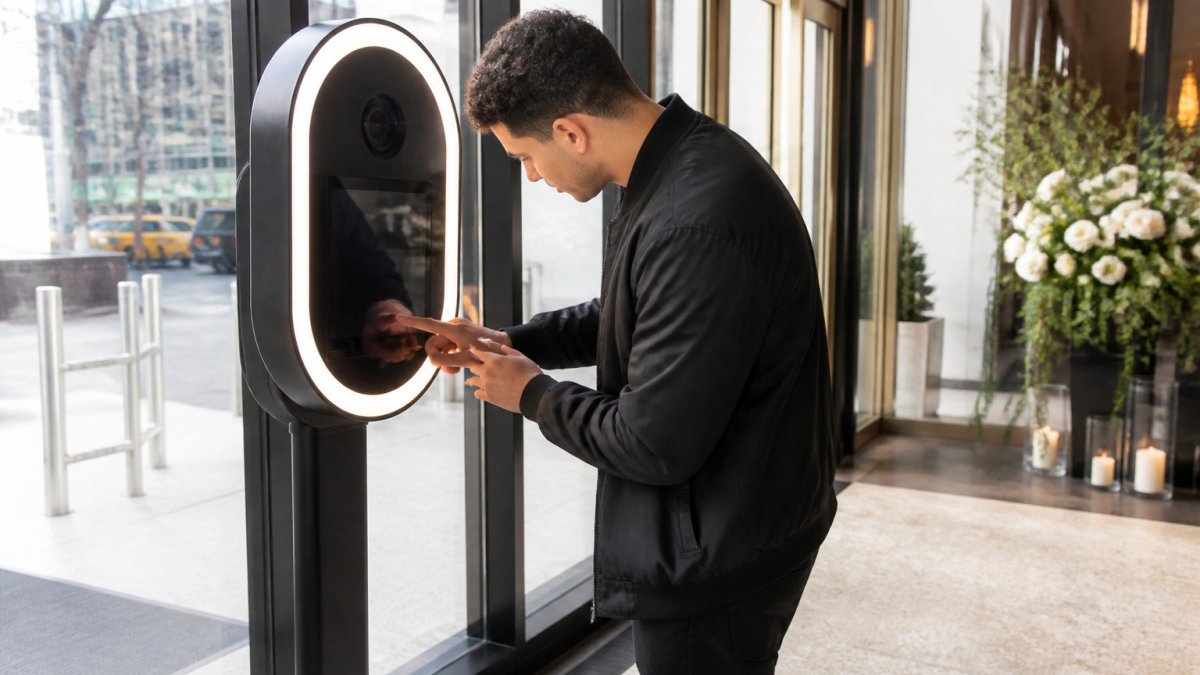
- Power on the booth and confirm the touchscreen responds
- Test one photo and one print
- Check paper, ink and print supplies
- Wipe the screen, camera lens and props
- Confirm signage and guest instructions are visible
- Log any faults or unusual behavior
Keep the checklist near the booth or in a shared folder so whoever opens the space can follow it. A simple log of each day's checks also makes it easier to spot patterns later.
How to Avoid Photo Booth Printer Jams
Printer jams are the most common interruption for a permanent booth. Most come from a few preventable causes.
- Use the paper and ink cartridges the printer manufacturer specifies
- Load paper so it sits flat and the edges line up with the guides
- Store paper somewhere dry, since humidity can cause curling and feed problems
- Clear any torn scraps from the feed path before restarting
- Let the printer cool between heavy use periods if it gets warm
When a jam happens, power the printer down, open the access panel and remove the paper gently in the direction of the feed path. Tearing it can leave fragments that cause the next jam.
Keeping the Booth Stocked and Ready for Guests
A booth that runs out of paper or props during a busy period frustrates guests fast. Set a restocking routine based on how often the booth gets used.
- Keep a spare set of paper rolls and ink on hand
- Check prop bins at opening and after peak hours
- Replace damaged or dirty props right away
- Confirm backdrops are straight and secure
Plan restocking for quiet times rather than waiting for supplies to run low. Find out whether an attendant helps with on-site support and guest flow during busy periods. Whoever manages the booth should know where spare supplies are kept and how to reorder them. If you would rather have a trained attendant on site all night handling supplies and troubleshooting at your event, check availability for a Standard Photo Booth Package.
Writing Clear Photo Booth Guest Instructions
Guests who understand the booth move through faster and leave happier. Short, visible instructions do most of the work.
Post simple steps near the booth:
- Pick a background and pose
- Choose your photo style
- Add your name or email to receive your photos
- Wait for the countdown and smile
- Collect your print or check your phone
Keep wording short and use plain language. If the booth shares photos digitally, mention how guests can find them, such as a QR code or a text message.
Cleaning and Scheduled Maintenance
Regular cleaning protects both the equipment and the photos. Fingerprints on the lens or screen show up in every shot, so cleaning matters more than it might seem.
- Daily: Wipe the touchscreen, camera lens and any surfaces guests touch
- Weekly: Clean inside the printer area, check cables and tighten loose connections
- Monthly: Inspect the enclosure, backdrops and lighting for wear
Set recurring reminders for each task. A maintenance schedule works best when it lives on a calendar rather than in someone's memory.
Remote Monitoring and Cloud Management
A permanent booth that sits in a lobby or back bar is typically unstaffed between events, so the manager's job includes checking the unit's status before guests use it.
Treat remote management as three separate jobs, because they fail in different ways:
- Uptime monitoring, is the booth powered, online and responding?
- Usage monitoring, how many sessions, prints and digital sends happened today, and does that match expectations?
- Content monitoring, are photos uploading, and is the local queue draining?
What a useful dashboard actually shows
A remote dashboard is only as good as the signals it surfaces. At minimum, confirm your setup reports:
- Online/offline status with a timestamp of the last successful check-in
- Session count and print count for the current day and the trailing seven days
- Supply warnings (paper low, ink low) before they become guest-facing failures
- Upload queue depth, the number of photos captured locally but not yet confirmed in the cloud
- Error codes with a plain-language description, not just a numeric code
If the dashboard only shows "online" and nothing else, you are monitoring a heartbeat, not the booth. The upload queue is the single most important number: a booth can look online while quietly failing to deliver photos.
Set thresholds, not vibes
A practical pattern:
- Define a normal daily session range for the space (a hotel lobby and a bar will differ wildly).
- Alert when a day falls well below that range, that usually means a frozen screen or a network drop, not a quiet day.
- Alert immediately on any upload queue that has not drained within a set window.
- Route alerts to a shared channel, not one person's inbox, so coverage survives vacations.
Remote actions you should be able to take
Remote tooling can help a manager address some common problems without a site visit:
- Restart the booth application remotely
- Push a settings change (session length, share options, overlay copy) to the unit
- Clear a stuck upload queue and re-sync
- Pull a remote diagnostic log before dispatching anyone
Cloud storage is not the same as a backup plan
Cloud sync protects guest photos if the local machine fails, but only if uploads are actually completing. Confirm two things weekly: that the cloud copy exists for every session, and that the local copy is being pruned on a schedule so the drive does not fill up and stall the booth. A full local drive is one of the most common silent failures in permanent installs.
Where this connects to an attended event
For a one-night event, a trained attendant on site all night is the monitoring layer, they see a jam, a frozen screen or a guest who never got their photo and fix it in the moment. A permanent booth has no attendant between events, so the remote dashboard has to do that job. If you are planning a corporate activation or gala in Manhattan, Brooklyn, Queens, Staten Island, Nassau County or Suffolk County and want the attended version, a Corporate Event Photo Booth Rental runs on a different operating model than a permanent kiosk, and worth confirming on the call.
The table below summarises the three monitoring jobs and the signals that show each one is working.
| Monitoring job | What it answers | Signal to watch |
|---|---|---|
| Uptime monitoring | Is the booth powered, online and responding? | Online status with last check-in timestamp |
| Usage monitoring | Do session and print counts match expectations? | Daily and trailing seven-day session and print counts |
| Content monitoring | Are photos reaching the cloud? | Upload queue depth not yet confirmed in the cloud |
Security, Anti-Theft and Data Privacy
A permanent booth is a public-facing computer with a camera, a printer and a network connection, sitting in a space you do not fully control. That combination creates two distinct risk categories, physical and data, and each needs its own routine.
Physical security and anti-theft
Start from the assumption that anything a guest can reach will eventually be tested.
- Anchor the unit. Bolt or tether the enclosure to the floor or a fixed structure. A booth that can be tipped or walked off is a liability and a theft target.
- Lock the compute and cash-free components. The computer, cabling and any payment hardware belong in a locked enclosure with a key held by a named person, not a shared drawer.
- Protect the cable path. Exposed power and network cables get kicked, unplugged and tripped over. Route them behind the unit or in a floor cover.
- Control the props and supplies. Props walk off. Keep bins behind the counter or in a locked cabinet between events.
- Log access. If staff open the enclosure, note who and when. Patterns show up fast, missing supplies, repeated resets, unexplained downtime.
Data privacy: what actually applies
Guest photos and email addresses are personal information, and a permanent public kiosk collects them continuously. Several privacy frameworks may apply depending on your situation:
- State consumer privacy laws. Some states have privacy statutes that may give residents rights over personal data. If your venue serves residents of those states, your booth's data practices need to support those requests.
- Children's data. Be cautious about collecting personal information from children; design the flow so an email is optional and clearly tied to photo delivery.
- Marketing consent. Collecting an email to deliver a photo is not the same as permission to add that person to a mailing list, keep those two purposes separate and explicit.
- Payment card data. If the booth takes payment, handle card data carefully and keep card capture out of the booth's general-purpose computer where possible.
This is a general summary, not legal advice. Confirm your specific obligations with counsel before launch.
A privacy routine that holds up
- Collect only what the photo delivery needs, an email or phone number, nothing more.
- Show a short, plain-language notice at the booth explaining what is collected and why, with an opt-out for marketing.
- Store guest data in an access-controlled system; limit export rights to named staff.
- Set a retention window and delete on schedule. Photos and contact details kept indefinitely are a liability with no upside.
- Honor deletion requests promptly and log that you did.
How this differs from an attended event
At a one-night event, a trained attendant on site all night can help manage props and the physical unit in real time. A permanent booth has no attendant between events, so the notice, the retention schedule and the access log have to be built into the operating routine. If you are planning a Wedding Photo Booth Rental NYC or a brand activation in Manhattan, Brooklyn, Queens, Staten Island, Nassau County or Suffolk County, check availability for your date and confirm how the attended team handles these tasks.
Photo Booth Troubleshooting Guide
Most problems fall into a few categories. Work through them in order before calling for help.
- Screen unresponsive: Restart the booth software, then the computer if needed
- Camera not capturing: Check the cable connection and confirm the camera is powered
- No prints: Look for paper or ink problems and clear any jam
- Photos not uploading: Check the internet connection and the cloud account status
- Poor image quality: Clean the lens and check the lighting around the booth
Keep a short log of each issue, what fixed it and how long it took. Over time that record shows which parts of the booth need the most attention.
Book Your Next Event With Photobooth NYC
Managing a permanent booth well takes steady routines and clear guest instructions. If you're planning an event in New York City or on Long Island and want a fully attended booth, check availability for your date with Photobooth NYC today.
Frequently Asked Questions
How do you manage a permanent photo booth?
Managing a permanent photo booth comes down to three routines: a short daily check before guests arrive, a scheduled cleaning and maintenance plan, and a clear process for handling problems when they happen. Daily checks cover power, camera, touchscreen, printer paper and ink, and the sharing system. Maintenance runs on a fixed calendar so wear is caught early. Keeping a written log of every check and every fault makes patterns easy to spot. Most issues that frustrate guests trace back to a missed daily step, so consistency matters more than any single fix.
How do you keep a photo booth printer from jamming?
Most printer jams come from loose or mismatched paper, dust in the feed path, or a worn roller. Use only the paper and ribbon specified for your printer model, store supplies in a dry, sealed space, and check that the paper tray is seated correctly before each shift. Clean the feed rollers and the sensor path on a set schedule, and wipe away any paper dust. When a jam does happen, power down the printer, clear the path gently without tearing the paper, and run a test print before reopening the booth to guests.
What should you do if a photo booth stops working during an event?
Start with the basics: confirm power, check that the camera and touchscreen are connected, and look for error messages on the screen. Restart the software once, then the printer, following the sequence in your troubleshooting guide. Guest instructions should stay posted near the booth so attendees know what to do while you work. If the fault is not resolved quickly, pause the booth, let guests know the expected wait, and contact your provider. Keeping a log of the fault helps the technician diagnose the problem faster after the event.
How often should a permanent photo booth be cleaned and maintained?
Clean the touchscreen, camera lens, and housing daily, using a soft, lint-free cloth and a screen-safe cleaner. Inspect cables, the printer feed path, and supplies every day as well. Deeper maintenance, including checking rollers, updating software, and testing the sharing system, should run on a fixed weekly or monthly schedule set by your installation. Write the schedule down and assign a named person to each task so nothing is skipped when staff change.

